Installation Guide

How to Install IPTV on Roku

Learn how to install IPTV Smarters on your Roku Streaming Stick using Developer Mode. This step-by-step guide works on any Roku device variation.

Roku devices don't officially support IPTV apps, but you can still install IPTV Smarters using Roku's Developer Mode. This unlocks a hidden installer that lets you sideload the app in a few minutes.

Note: These instructions work on Roku Streaming Stick+ and any other Roku device variation.

Step 1: Open Developer Mode on Your Roku

On your Roku remote, press the following buttons in order to unlock the hidden Developer Settings screen:
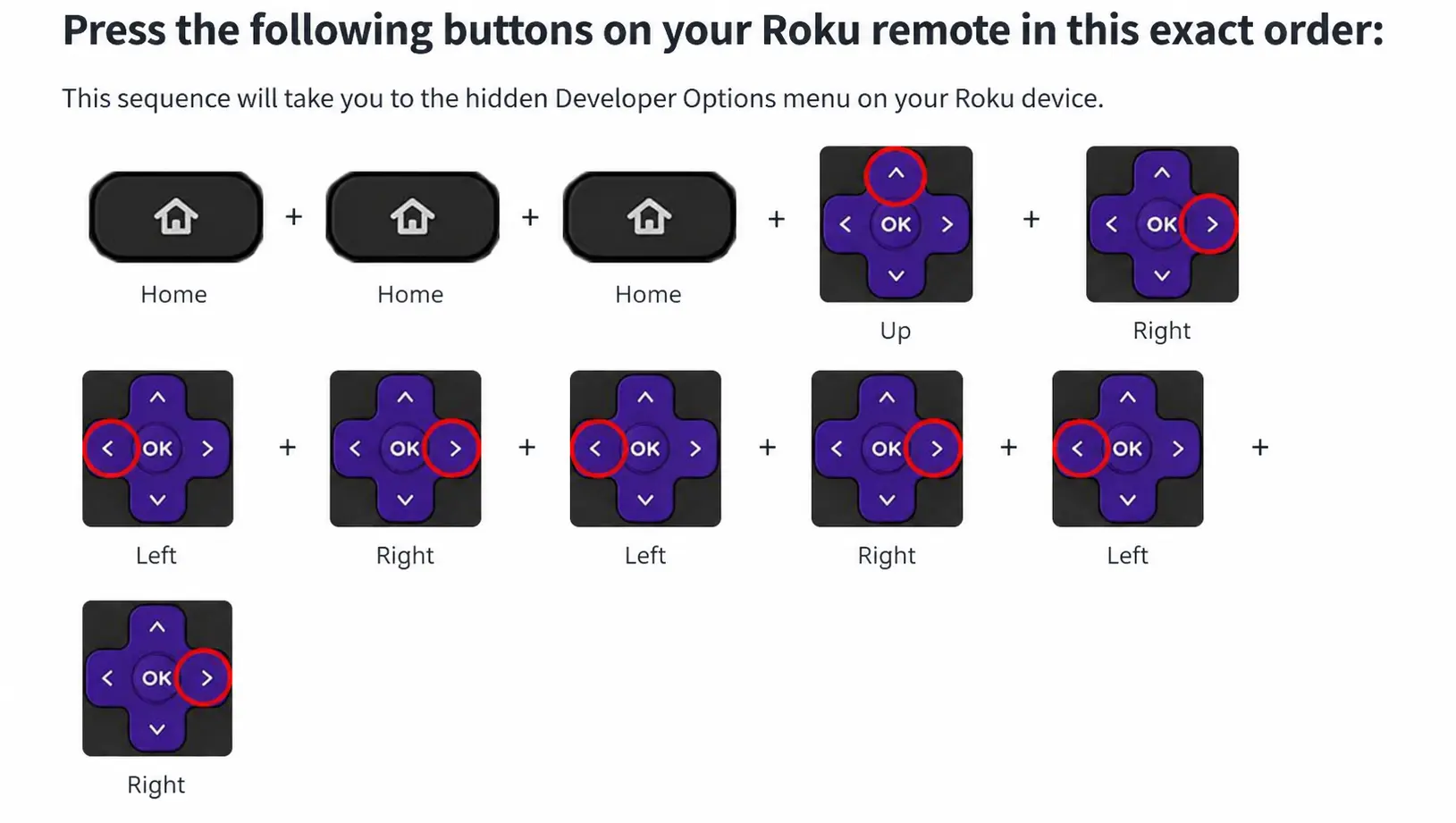
  • Home button — 3 times
  • Up button — 2 times
  • Right button — once
  • Left button — once
  • Right button — once
  • Left button — once
  • Right button — once
Roku remote button sequence to enable Developer Mode

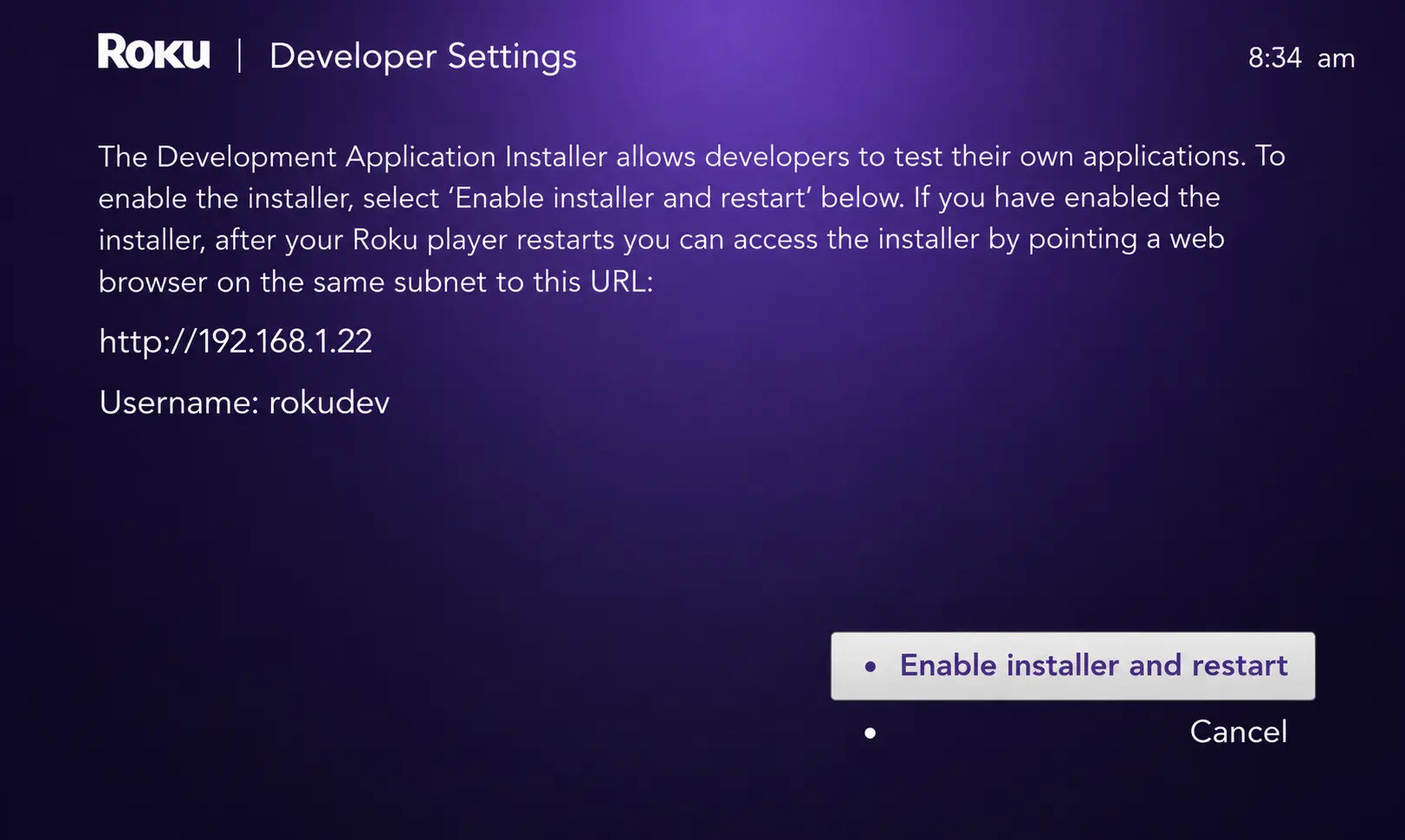
Step 2: Note Your Device IP Address

Important: Write down the URL shown on this screen — you will need it later. It usually looks like http://192.168.1.XX and will be different on your device.
1

Click Enable installer and restart.

Roku Developer Settings screen showing IP address

Step 3: Accept the Developer Tools License Agreement

Scroll down and click I Agree to the Developer Tools License Agreement.
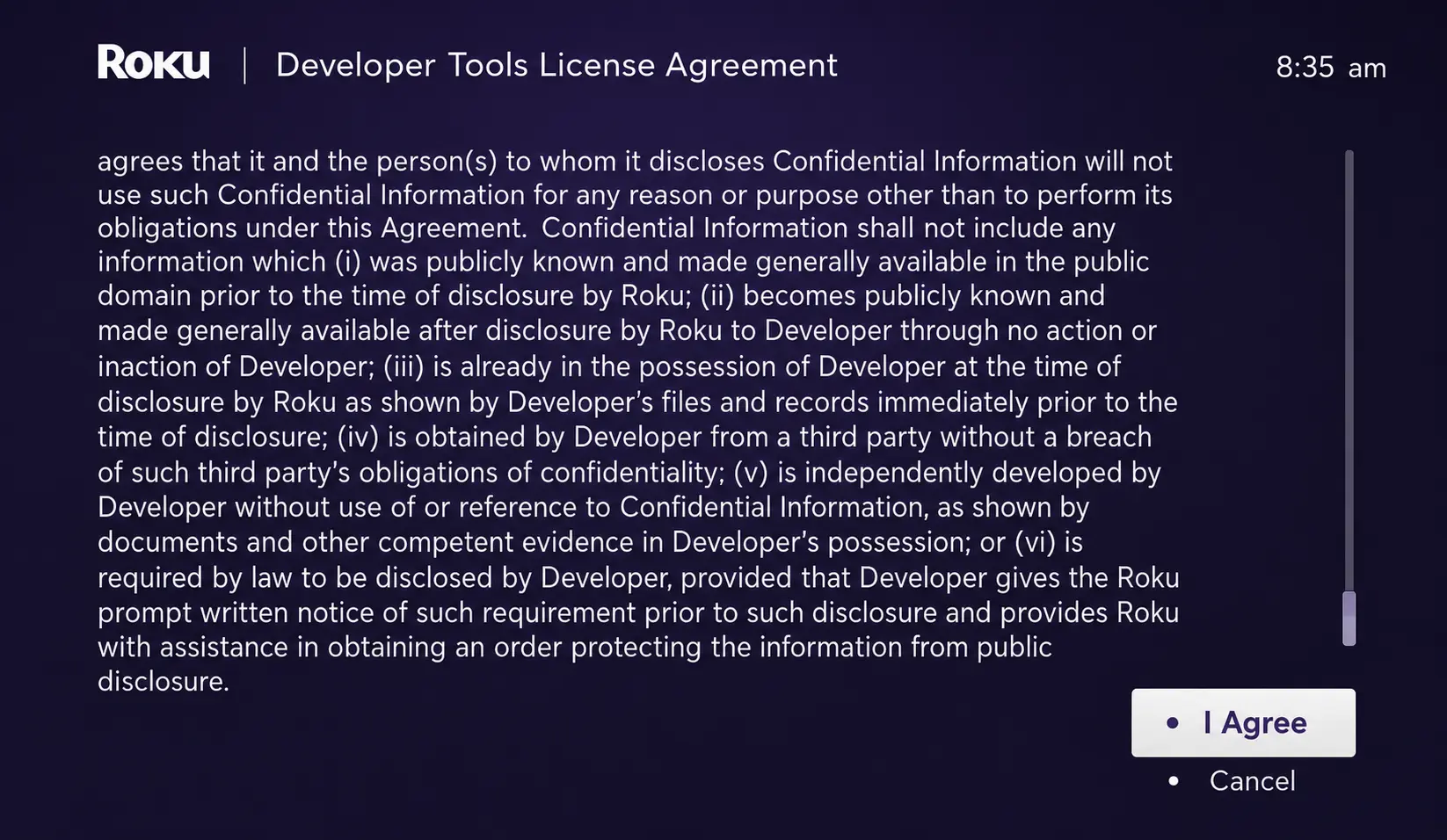
Roku Developer Tools License Agreement screen

Step 4: Set a PIN and Reboot

When prompted, enter a PIN number of your choice (minimum 4 characters) and click Set password and reboot.
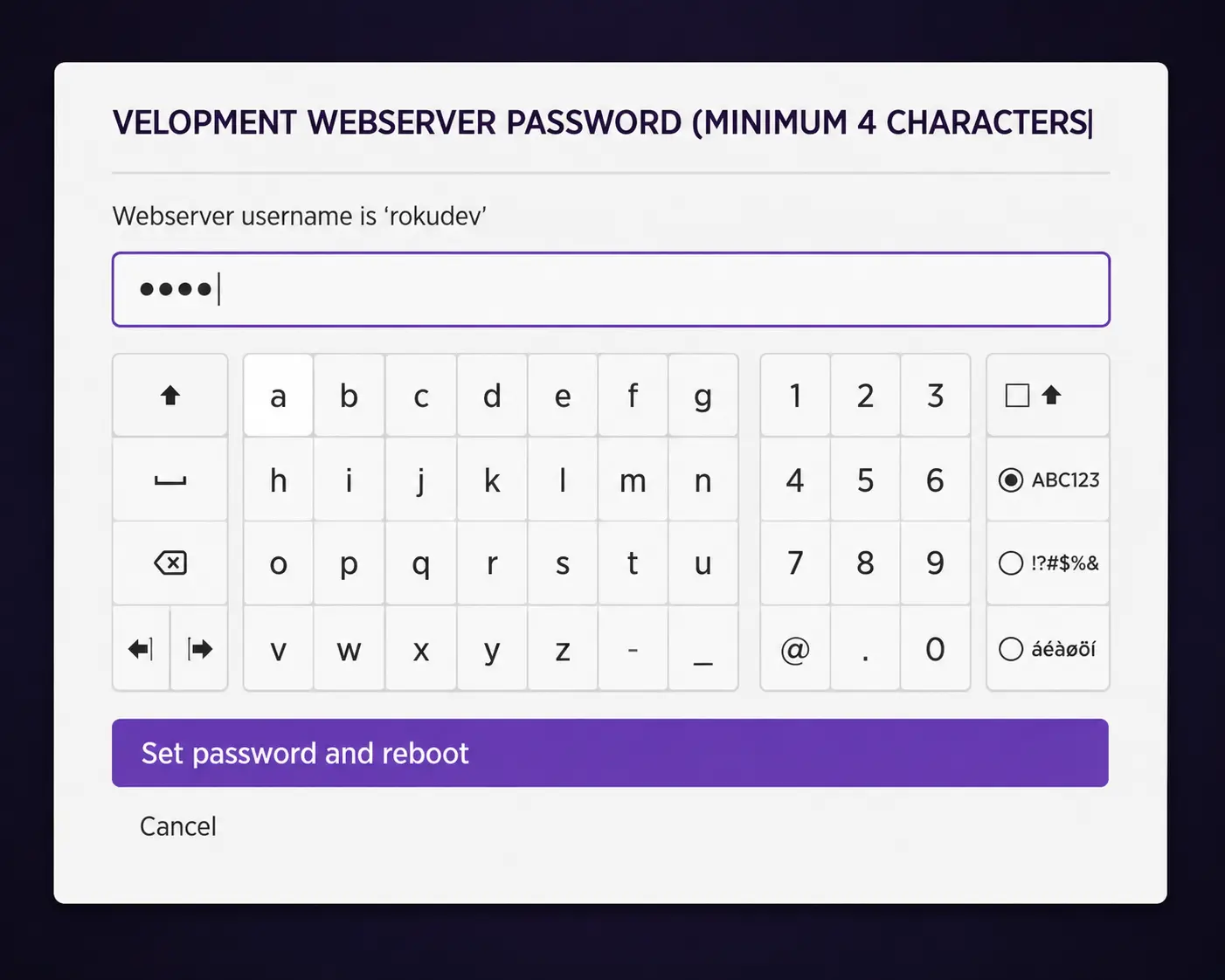
Set Roku developer webserver password screen

Step 5: Wait for Your Device to Restart

Your Roku device will restart automatically after setting the password.
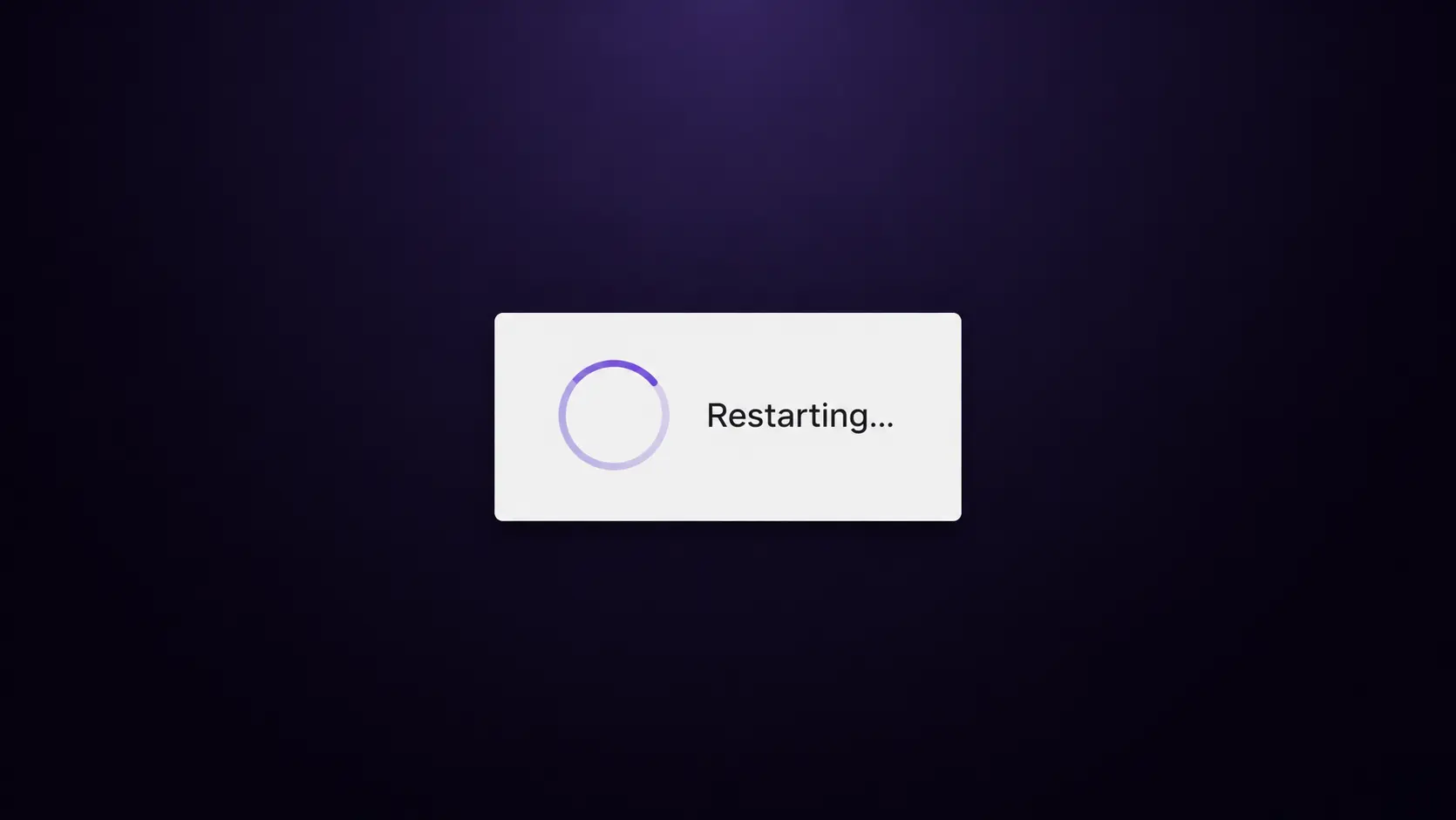
Roku device restarting screen

Step 6: Confirm Developer Settings Are Enabled

Enter the Developer Settings prompt again (repeat the button sequence from Step 1) to make sure Developer settings are enabled.
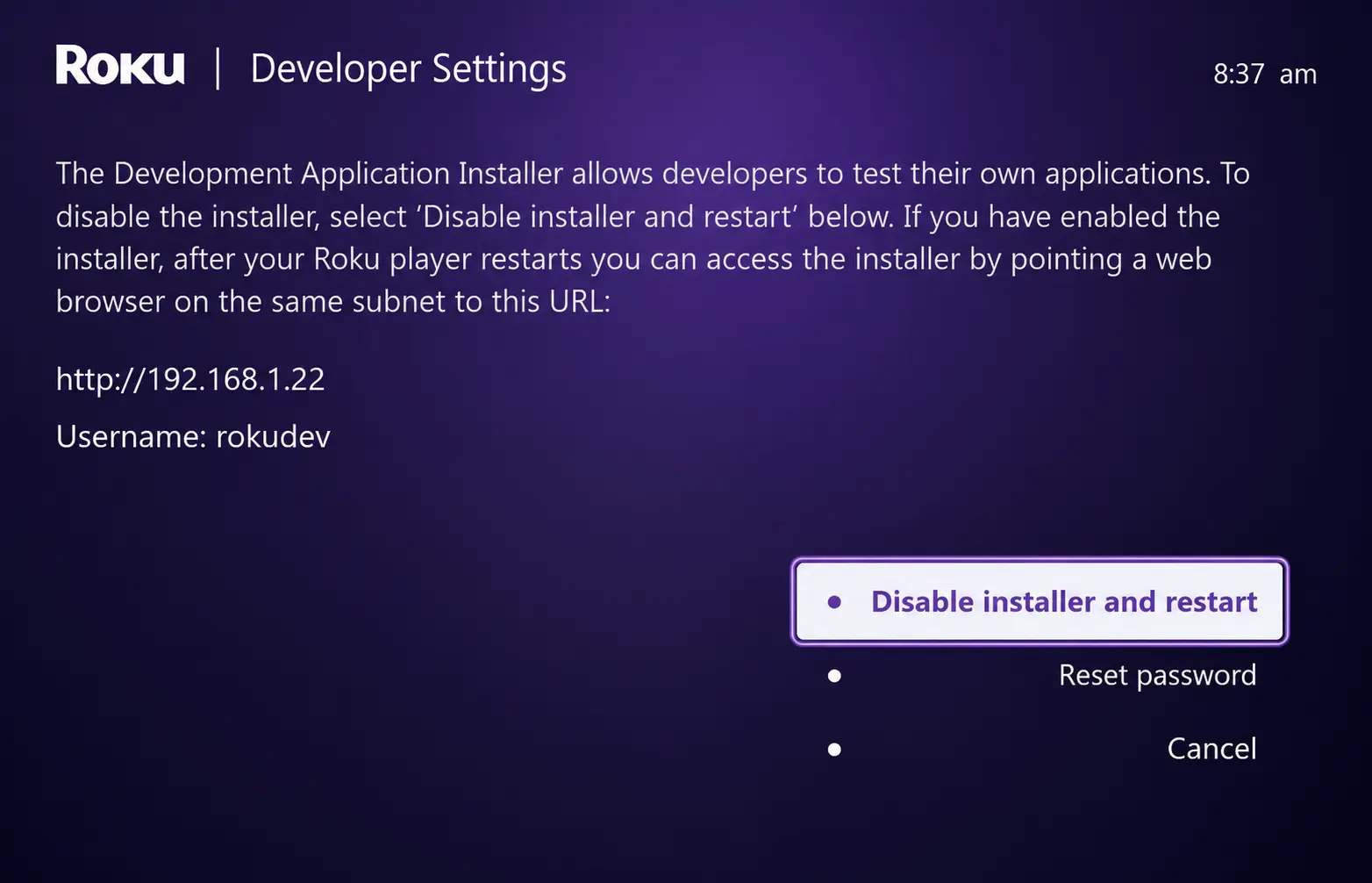
Roku Developer Settings confirming installer enabled

Step 7: Sign In to Your Roku Account

Open a browser on your computer and go to my.roku.com. Enter your account information and click Sign in.
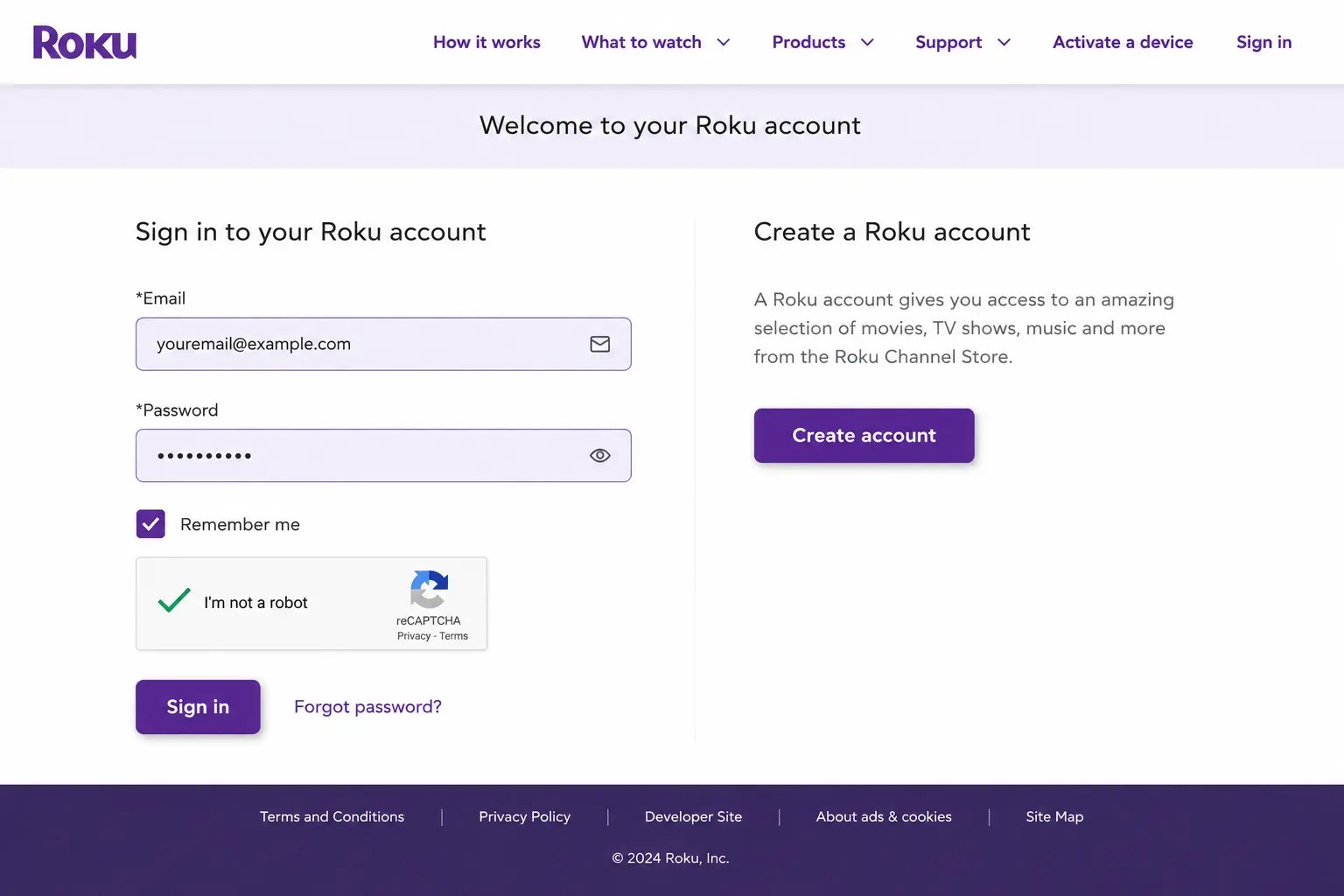
Sign in to my.roku.com account page

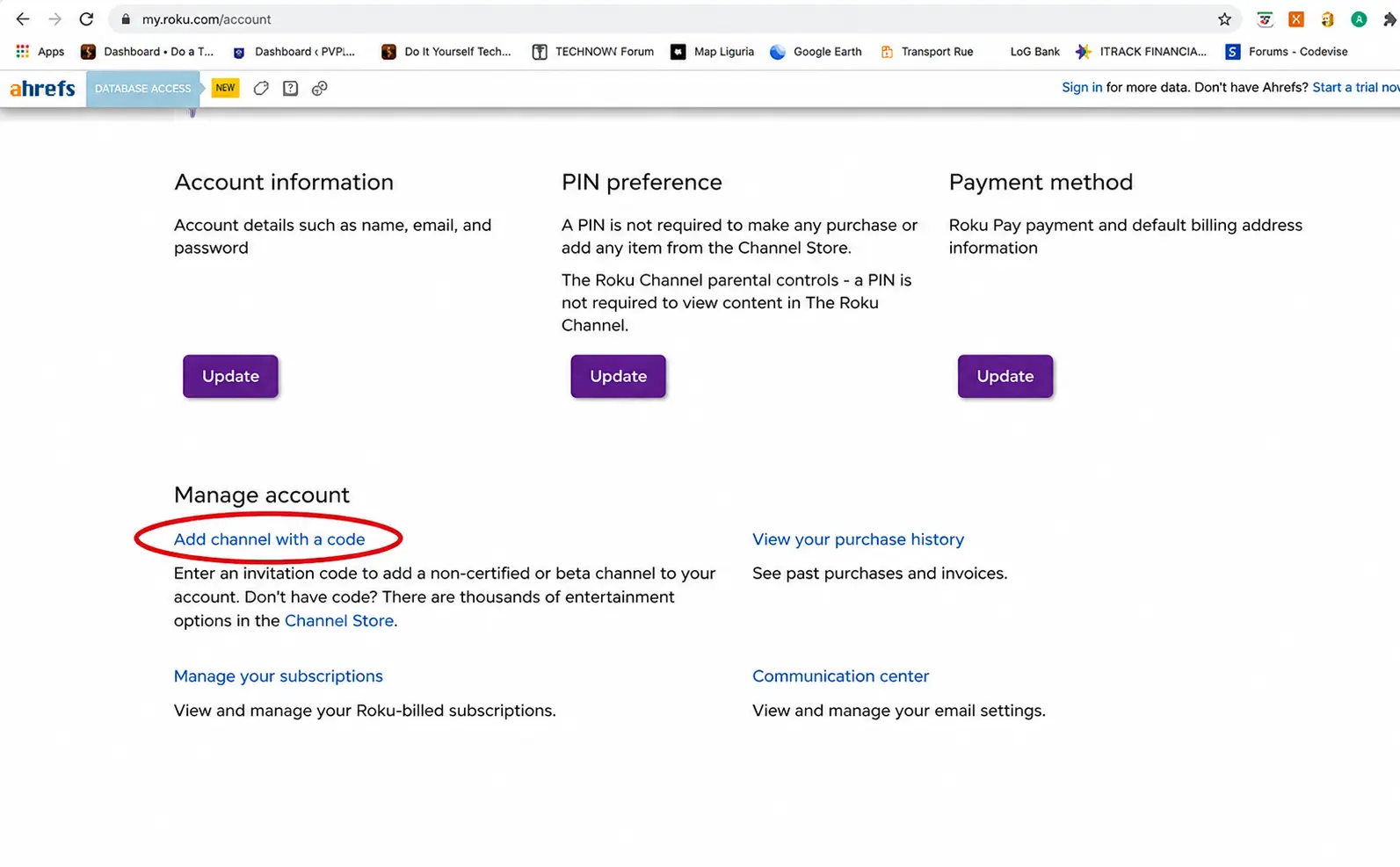
Step 8: Choose Add Channel With a Code

Roku account page with Add channel with a code option

Step 9: Enter the Channel Code

Type iptvsmarters and click Add channel.
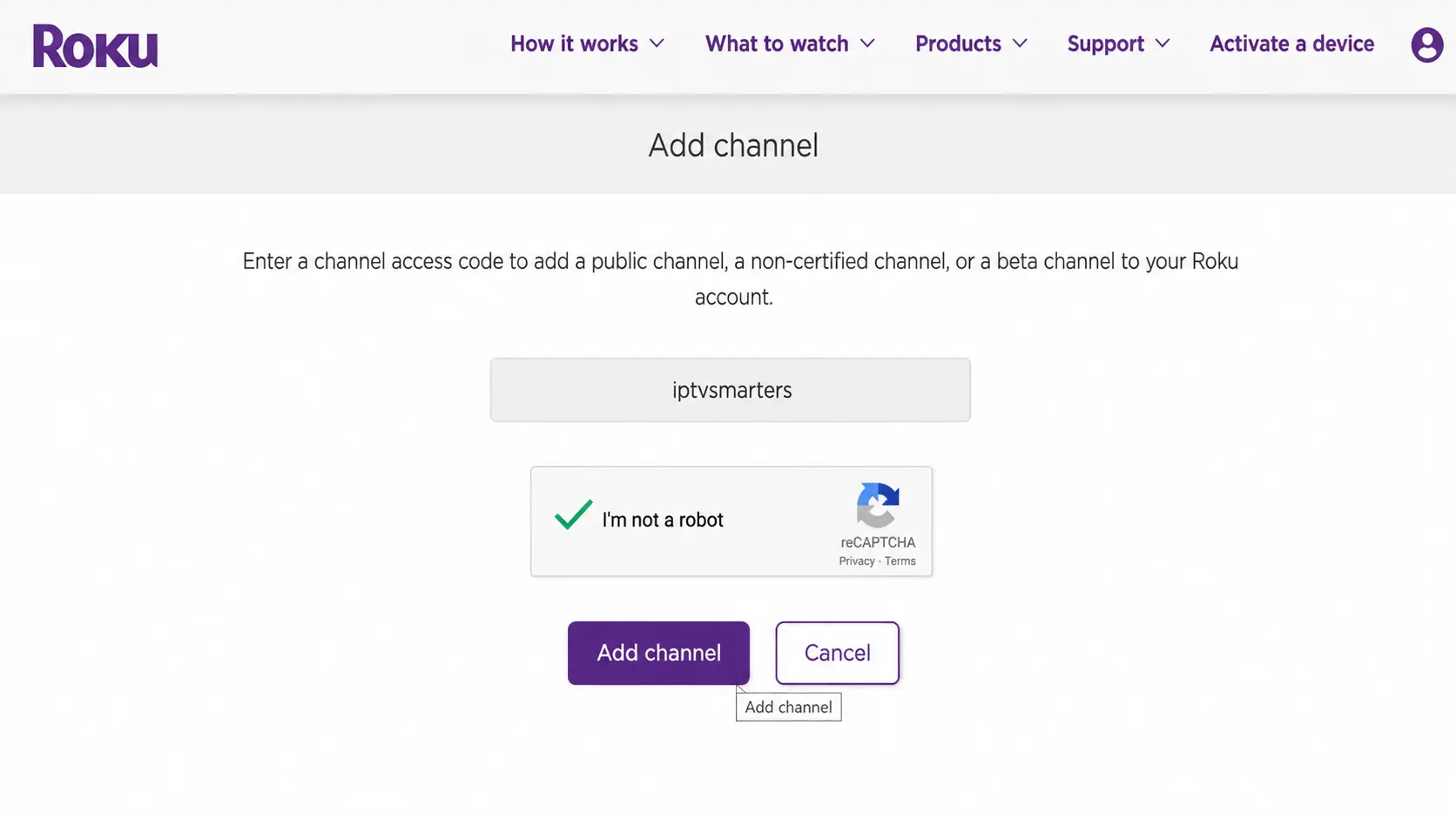
Enter iptvsmarters channel access code on Roku

Step 10: Confirm the Warning

Click OK on the non-certified channel warning popup.
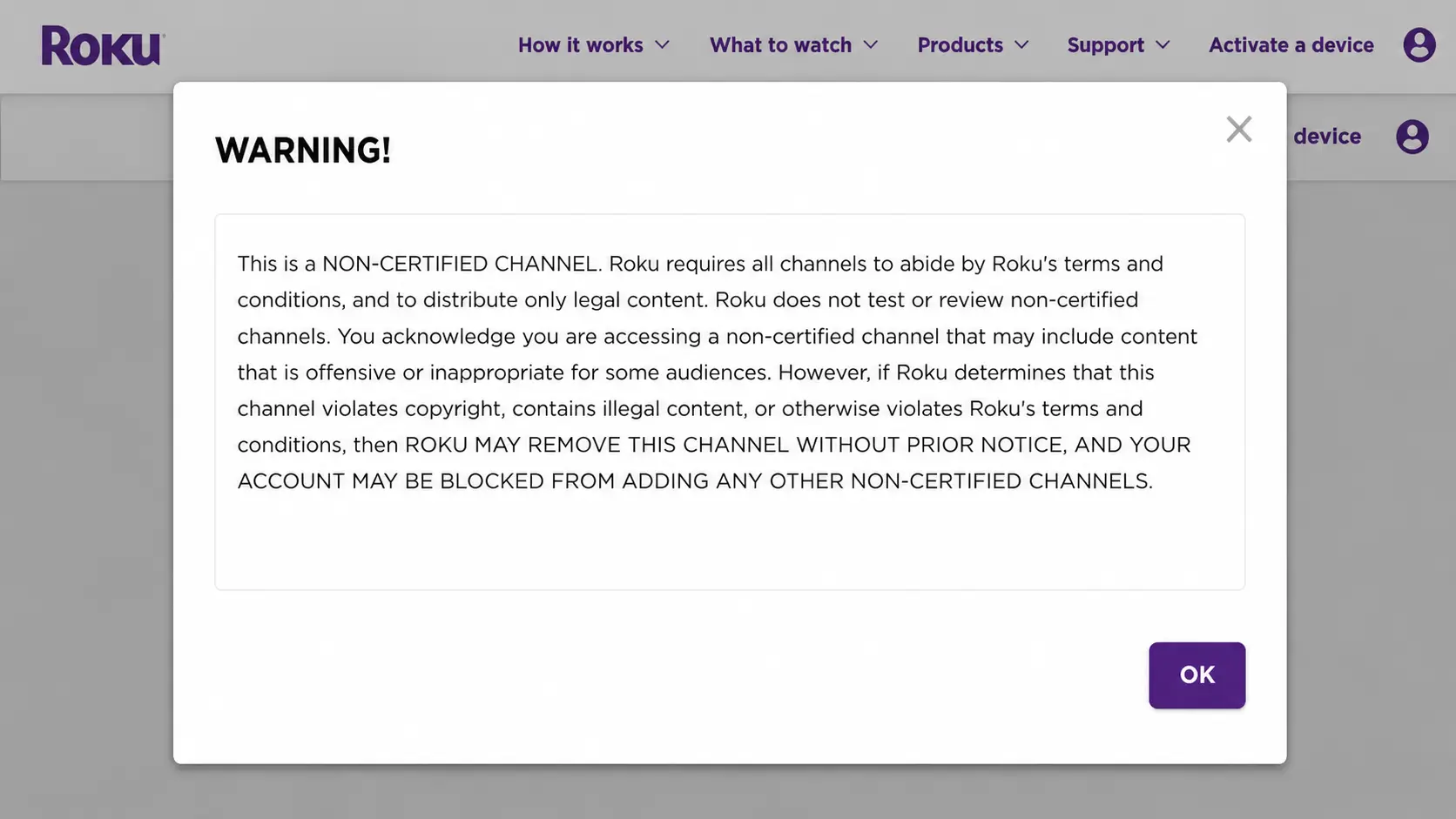
Roku non-certified channel warning popup

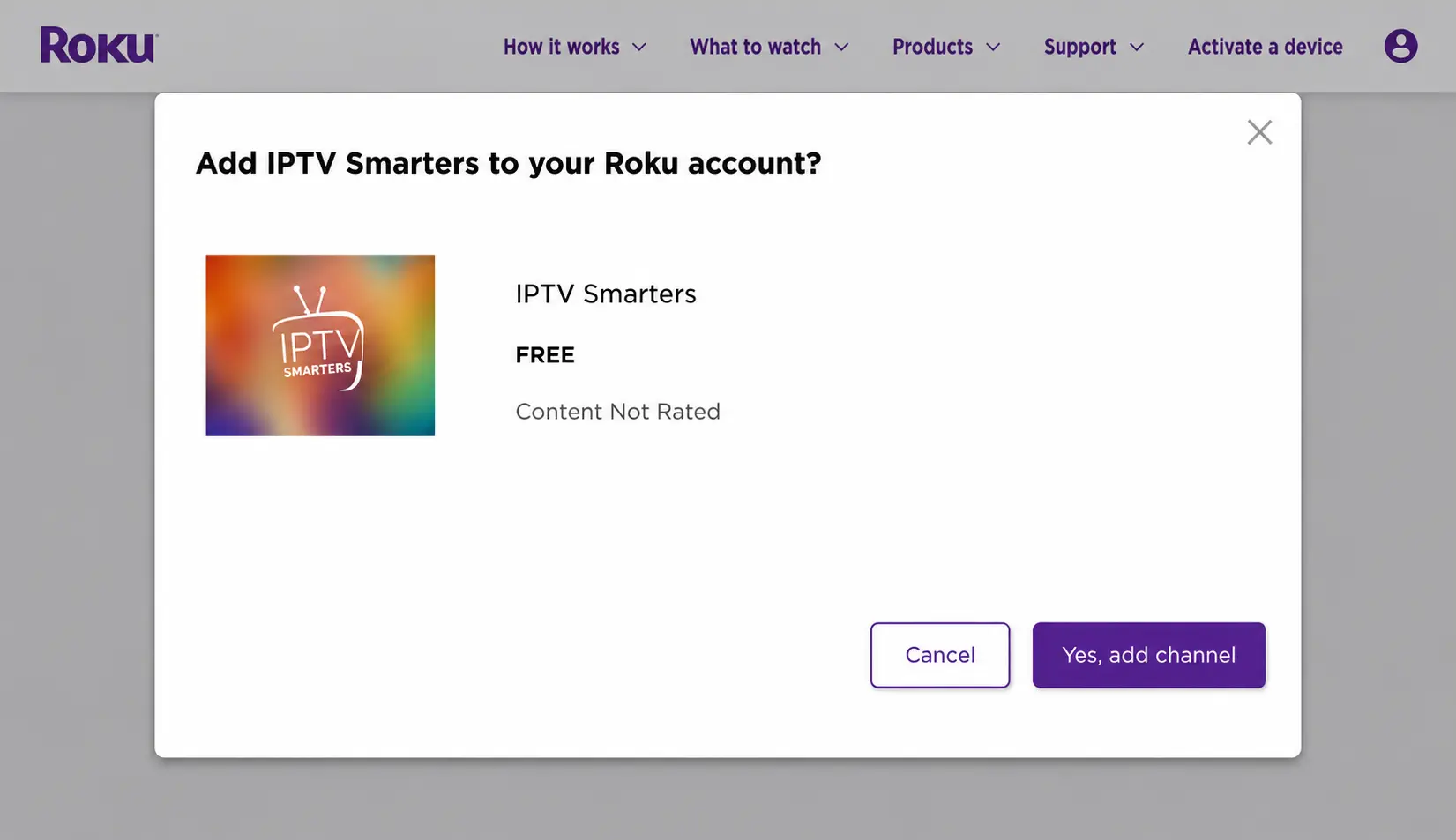
Step 11: Add the Channel

Click Yes, add channel to confirm.

Confirm adding IPTV Smarters channel to Roku account

Step 12: Download the IPTV Smarters File

Next, install the IPTV Smarters file onto your computer for upload. Contact OTTOcean support to receive the official download link.
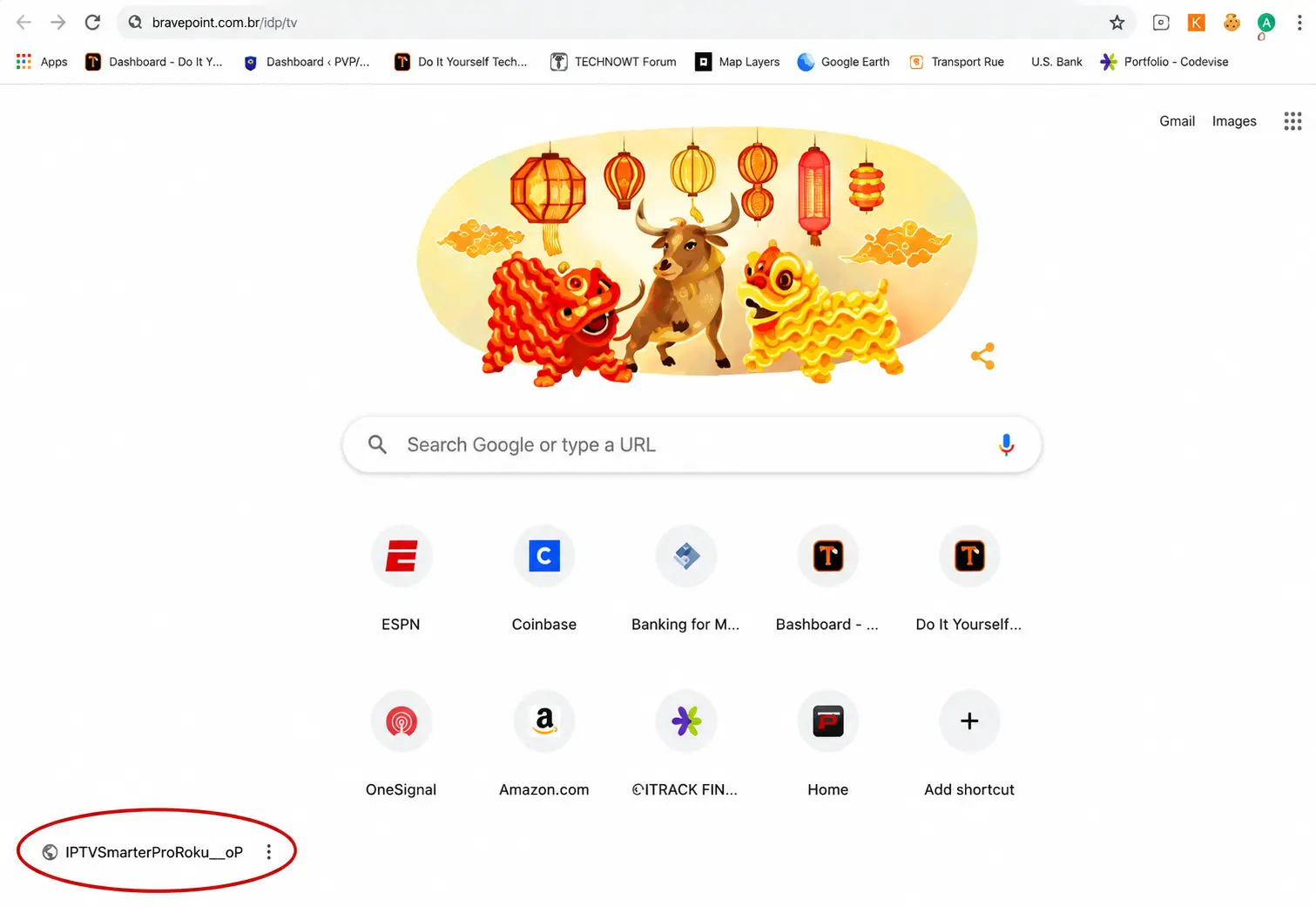
Download IPTV Smarters Roku app file

Step 13: Sign In to the Development Installer

Go to the IP URL from Step 2 in your browser and sign in with username rokudev and the password you created earlier.
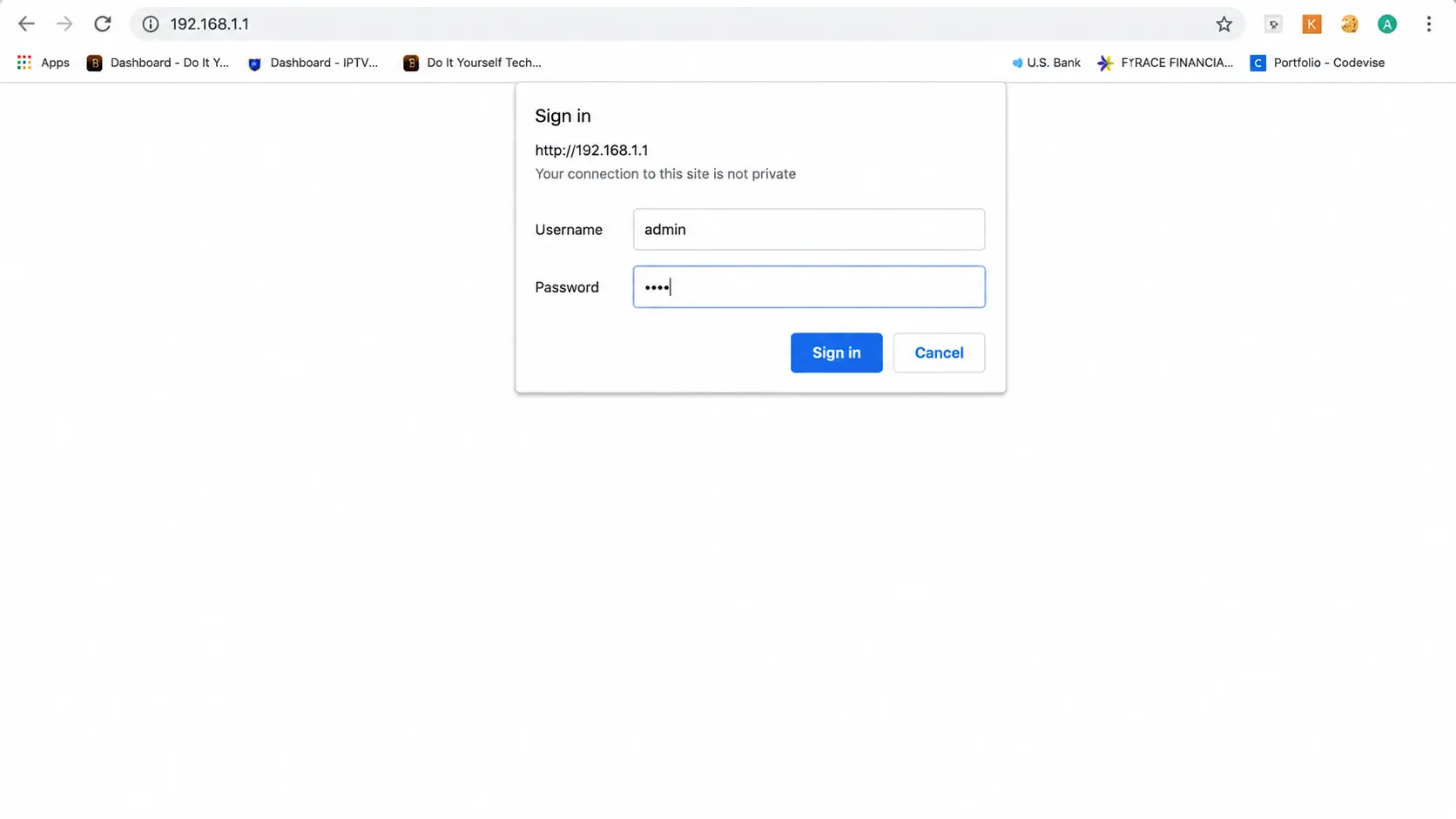
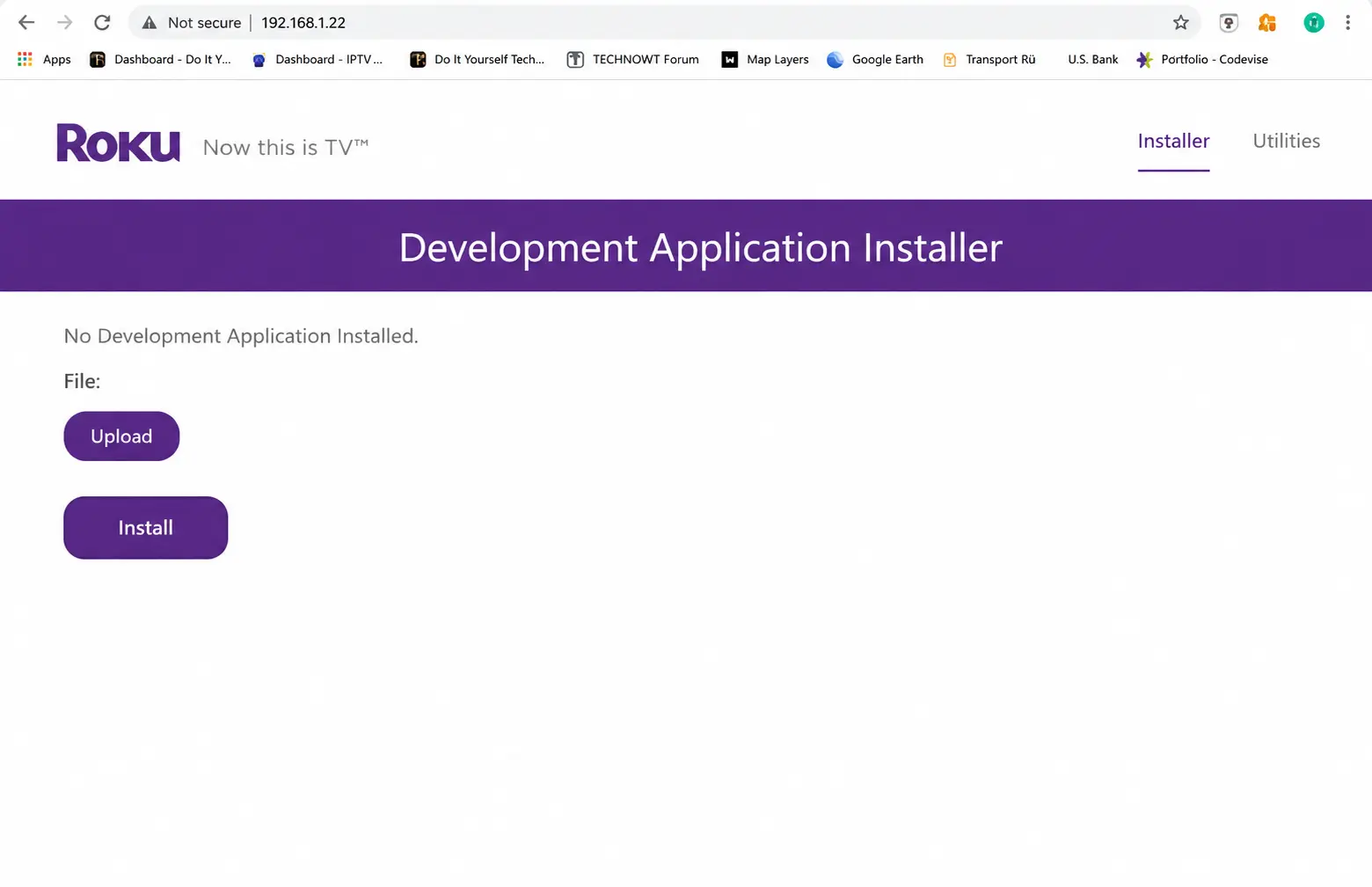
Sign in to Roku Development Application Installer

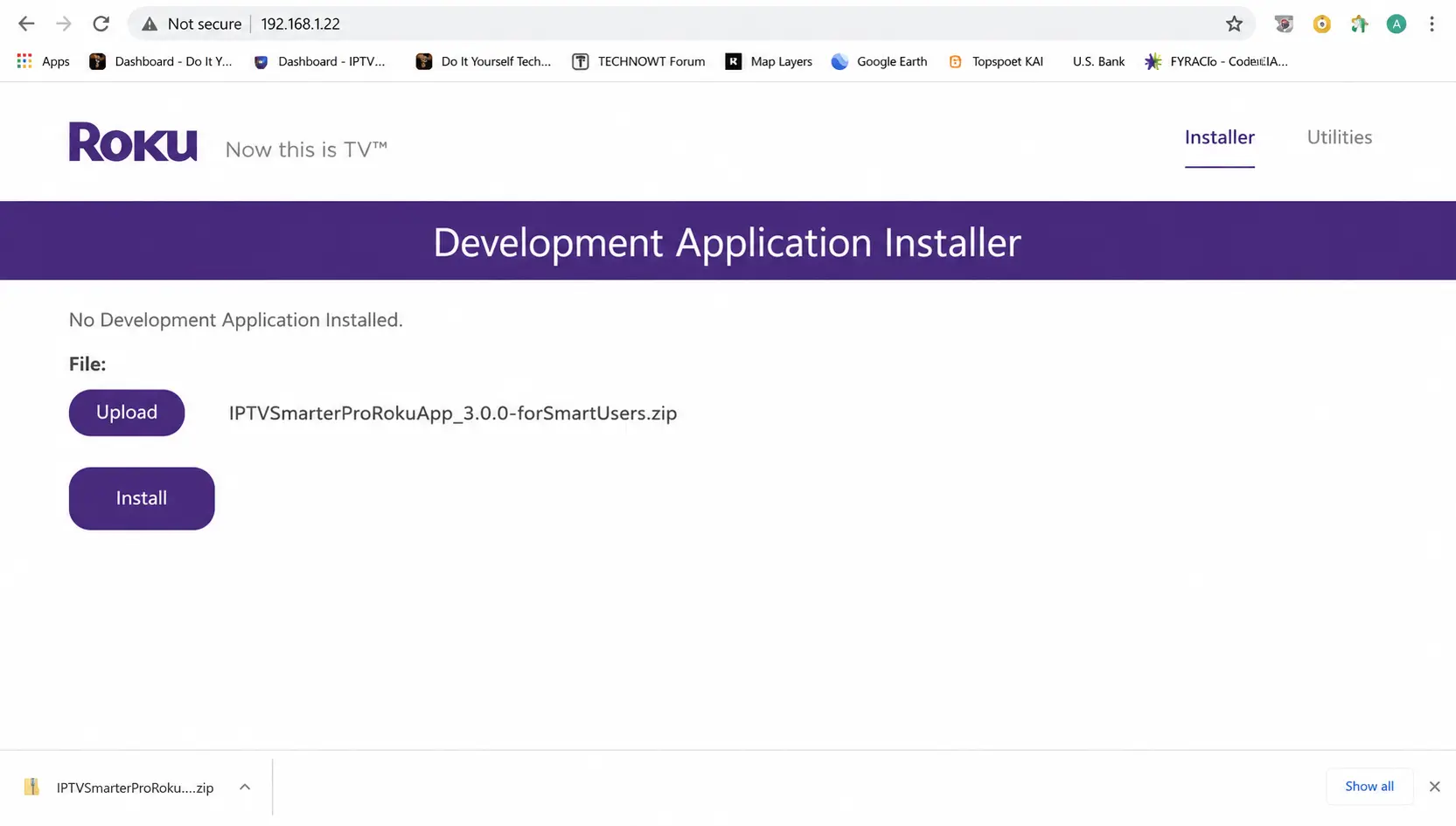
Step 14: Click Upload

Click Upload on Roku Development Application Installer

Step 15: Choose the Downloaded File

Select the previously downloaded IPTV Smarters file from your computer.
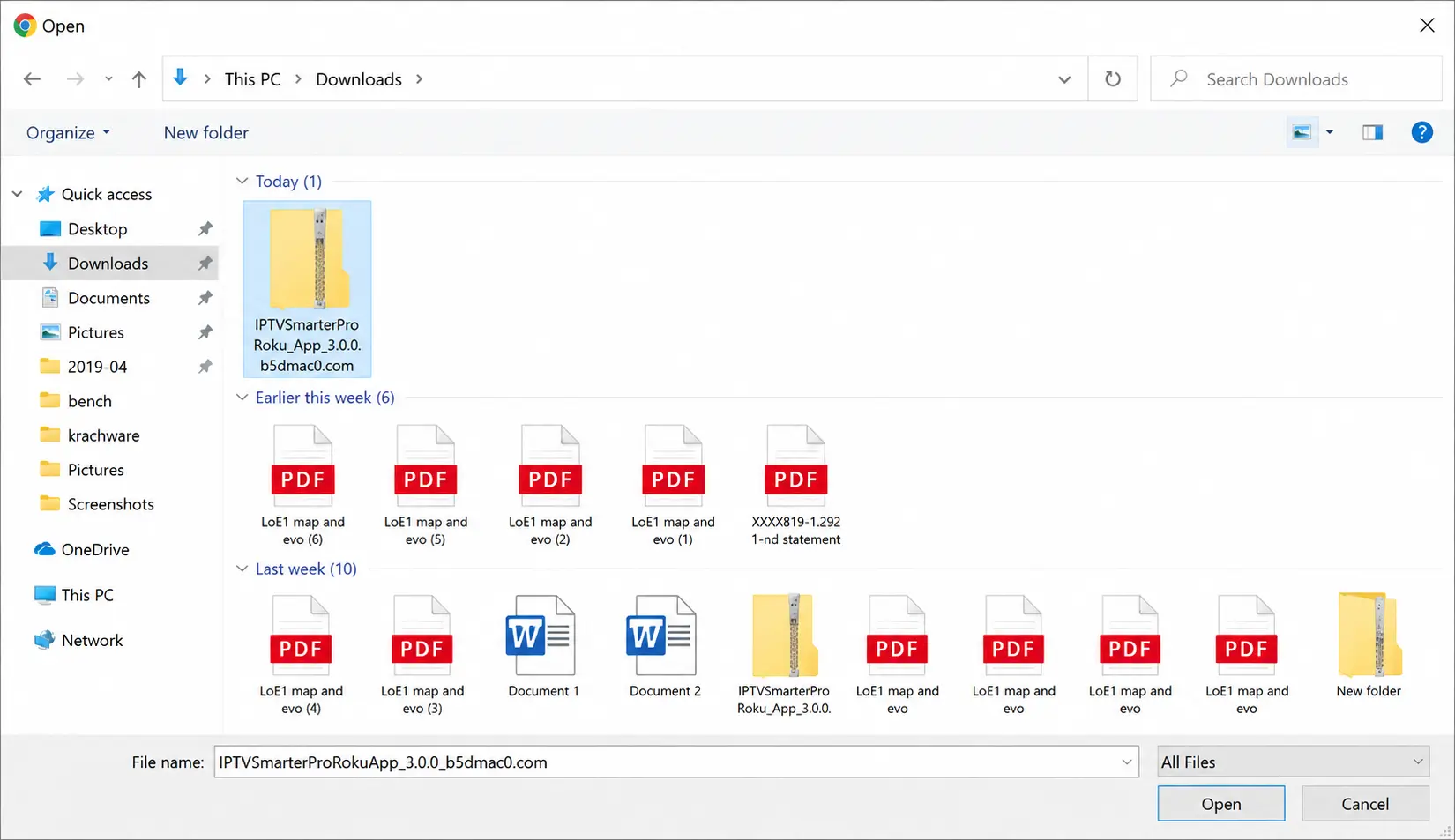
Choose the downloaded IPTV Smarters file

Step 16: Click Install

Click Install to finish uploading IPTV Smarters on Roku

Step 17: Confirm the Installation

You will see the Application Installed screen confirming a successful upload.
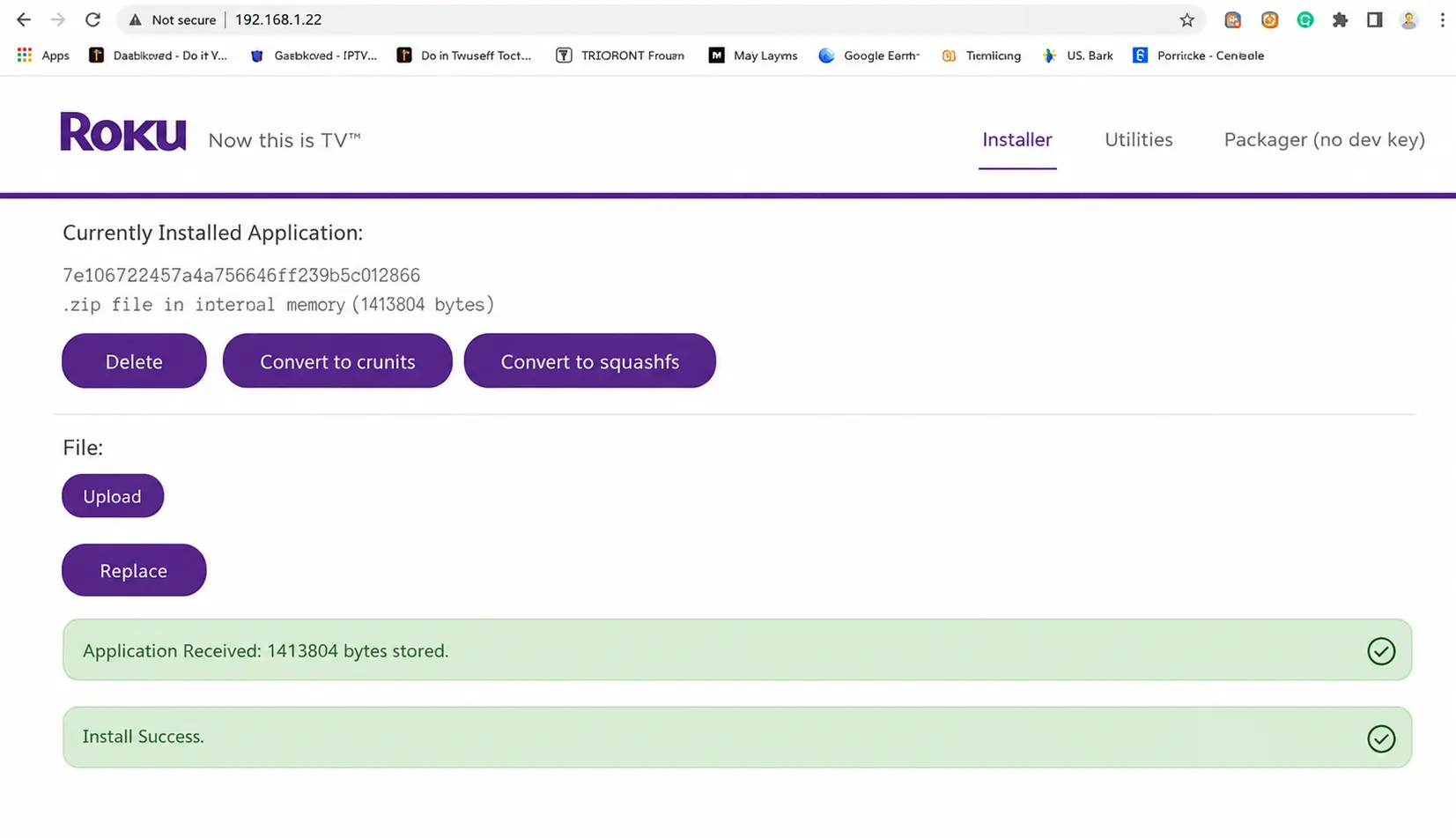
Roku Install Success confirmation message

Step 18: Launch the App on Your Roku

Return to your Roku device where the IPTV Smarters application will automatically launch.
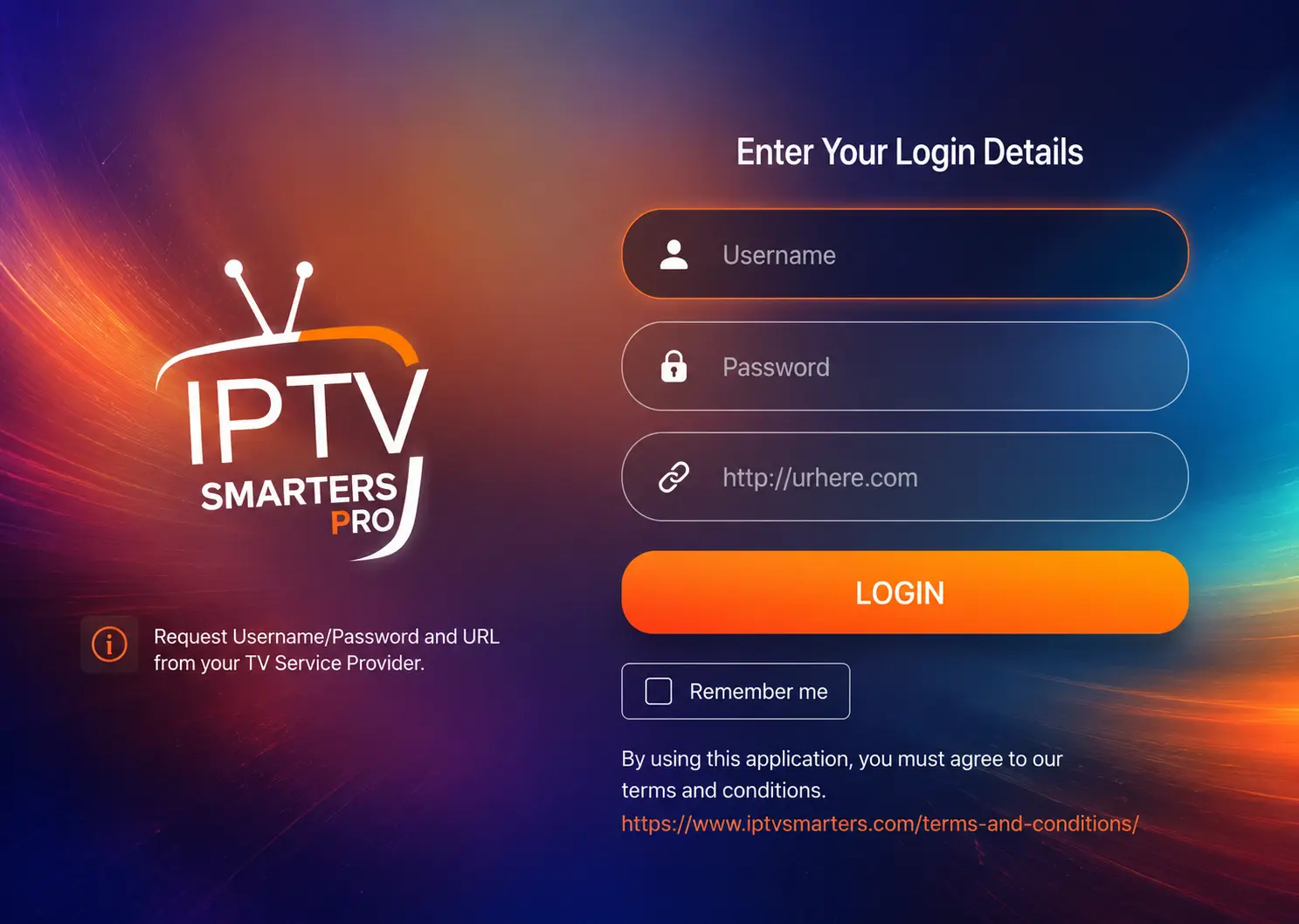
IPTV Smarters app launching automatically on Roku

Step 19: Log In and Start Watching

Enter your IPTV login credentials and click Login. Enjoy!

Where to find your login details:
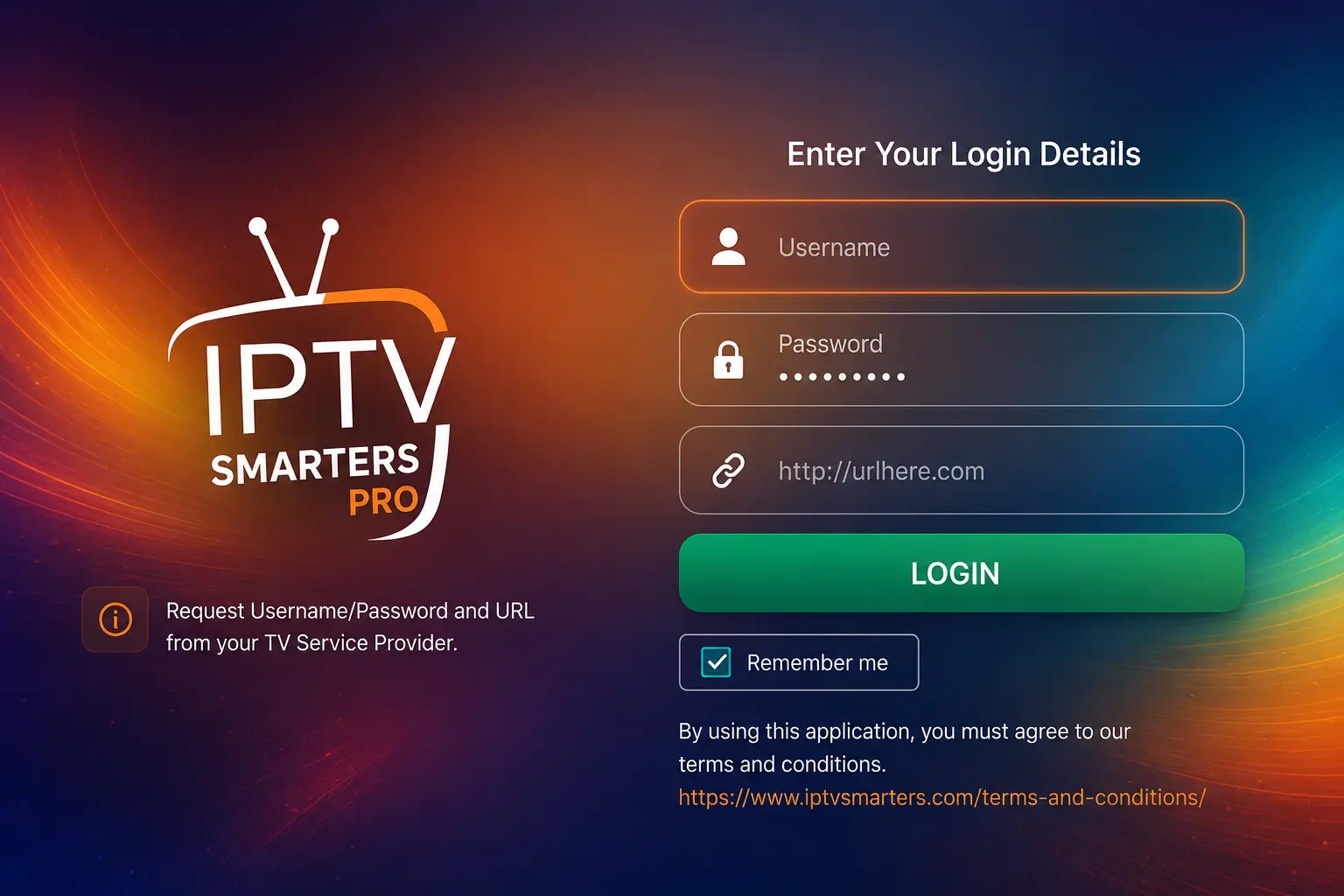
  • Username: Your OTTOcean username.
  • Password: Your OTTOcean password.
  • URL: Your OTTOcean server URL, provided after subscription activation.
IPTV Smarters Pro login screen on Roku
Your username, password and server URL are sent to you by email or WhatsApp right after your OTTOcean subscription is activated.

Troubleshooting

App Won't Load Channels

  • Double-check your username, password and server URL.
  • Restart your Roku device and try again.
  • Make sure your internet connection is stable.

Upload Fails on Developer Installer

  • Confirm your computer and Roku are on the same WiFi network.
  • Re-check the IP address — it may change after a restart.
  • Try disabling and re-enabling the installer, then repeat the upload.

Need Help Installing IPTV on Roku?

Contact OTTOcean support and we will help you install IPTV on Roku, Firestick, Smart TV, Android, MAG, Enigma2 and more.

Contact Support →